Client Detail
This page is for people managing Lumen-based services and tools. For details on what a client is, start with the Clients overview.
The client detail page (/clients/<id>) is where you manage a specific client: view usage, assign managers, create API keys, and check model access.
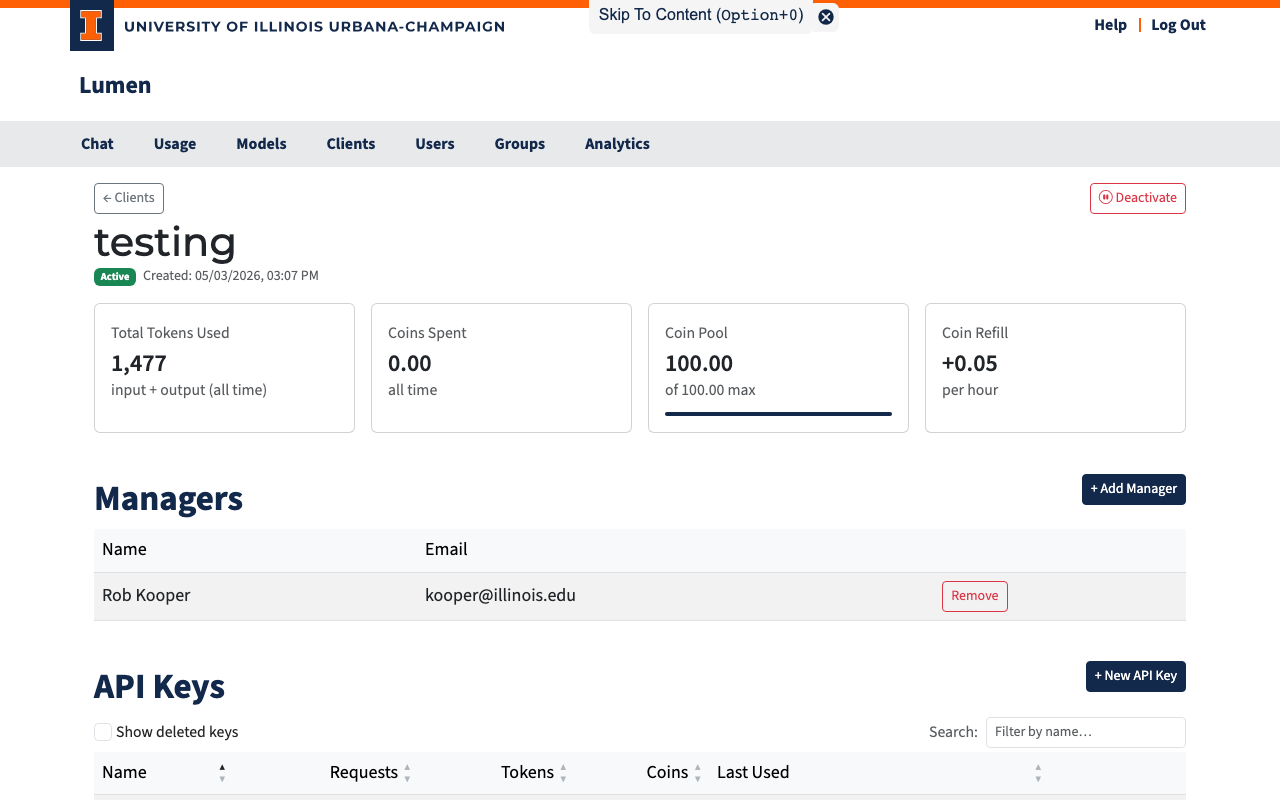
Usage Cards
The top row shows the client's activity and budget:
| Card | Description |
|---|---|
| Total Tokens Used | All input + output tokens this client has consumed |
| Coins Spent | Total coins spent by this client |
| Coin Pool | Current balance (or Unlimited / Not configured) |
| Coin Refill | Auto-refill rate and countdown to next refill |
Managers
Managers are the users responsible for a client. They can create and revoke API keys, grant model consent, and view usage — but they cannot manage other managers or deactivate the client.
Adding a Manager (admin only)
- Click + Add Manager.
- A search dialog opens. Start typing a user's name or email.
- Select the user from the dropdown.
- Click Add Manager.
Removing a Manager (admin only)
Click Remove next to any manager in the table.
What Managers Can Do
| Action | Manager | Admin |
|---|---|---|
| Create API keys for this client | ✓ | ✓ |
| Revoke API keys for this client | ✓ | ✓ |
| Grant model consent for this client | ✓ | ✓ |
| View usage on this page | ✓ | ✓ |
| Add / remove managers | — | ✓ |
| Activate / deactivate the client | — | ✓ |
API Keys
This section works exactly like the API Keys section on the Profile page, but keys here belong to the client, not to your personal account.
Creating a Key
- Click + New API Key.
- The key is generated and shown once in a dialog — copy it immediately.
- Give the key a descriptive name (e.g.,
production,staging,ci-runner). - Click Save Key.
Keys follow the same sk_... format as personal API keys. Use them exactly the same way in code:
from openai import OpenAI

client = OpenAI(
    api_key="sk_client_key_here",
    base_url="https://your-lumen-instance/v1"
)

response = client.chat.completions.create(
    model="gpt-4o",
    messages=[{"role": "user", "content": "Summarize this dataset: ..."}]
)
Key Table
| Column | Description |
|---|---|
| Name | Label you chose |
| Hint | First 4 + last 4 characters for identification |
| Requests / Tokens / Coins | Usage tracked on this key |
| Last Used | Timestamp of the last API call |
| Actions | Revoke button for active keys |
Use Show deleted keys to view previously revoked keys. Use the search box to filter.
Model Access
This table shows which models this client can use and how much it has consumed on each. The columns and access badges are the same as on the Profile page.
If a model shows Needs Consent, you can click it to grant acknowledgment on behalf of the client, making the model available to all API keys associated with this client.